Changelog
What's new
Every change we ship to Pointless, in plain words. Newest first.
November 4, 2026
Your Amazon data upload counts orders correctly
For shoppers
Uploading the data Amazon sends you now matches what Pointless reads from your account.
- Cancelled orders no longer count as delivered.
- Two lines at the same price in one order are both counted.
- Orders placed late on the last day of a month stay in that month.
- Orders paid in another currency are left out, and the upload tells you how many.
Your reports fill in by themselves after a read
For shoppers
Once your Amazon read finishes, the reports on Home fill in on their own, with no refresh.
- Reports that already have a number show it while the read is still running.
- The grey rows no longer get stuck on Updating after the read is done.
A security page that says what we do
For shoppers · For brands
One public page lists how your orders are stored, what we never keep, and what brands can and cannot see.
- Open Security from the Help button (the lifebuoy), the More tab on a phone, or the link on the Privacy page.
- It names the providers that help us run Pointless and what each one is for.
- Anyone can read it without signing in, at joinpointless.com/security.
Point at what you mean when you share feedback
For shoppers · For brands
Share feedback now opens a small bar: point at a part of the page, or type a note, then send them together.
- Point lets you tap any part of the page and say what should change.
- Type adds a note about the whole page.
- Notes shows them before you send, with OK to reply.
- One Send files all of them with the team.
Home shows your orders and pictures while we read them
For shoppers
While your first Amazon read runs, Home shows how many orders we have found, your first product pictures and how long is left.
- A card at the top says how far along we are and that you can come back to this page later.
A quick check-in after your first read
For shoppers
Once your first read is in, Home asks how it went and whether better offers would be worth sharing with a brand.
- One card at the top of Home, shown once. Type a line, pick Yes, Maybe or No, then Send.
- Not now hides it for good.
- After you send, you can say whether a 10-minute call would be OK.
Every brand page shows what's coming
For brands
Until 3 shoppers connect, each page shows your invite link and a gray example of what it will hold.
- Every page says how far away it is and gives you the link to send, with a Copy link button.
- Under it sits a labelled example of that page, with made-up numbers, so you can see what opens.
- Brands, Categories and Channels no longer show empty headers or a loader that never finishes.
Offers in private areas, only if you say yes
For shoppers · For brands
If a brand has an offer that fits a private area, one line on Home lets you decide. Nothing is matched until you say yes.
- One line under Offers for you says there is an offer in a private area. Choose Show to see the area, then Yes or No.
- Privacy has one new switch, Offers in private areas, for all of them.
- Brands still never see these purchases. They only learn you used an offer if you redeem it.
Private areas stay with you
For shoppers · For brands
Brands never see items in five private areas. Everyday health and baby items are no longer hidden by default.
- Pregnancy and fertility, sexual wellness, medication and conditions, mental health, and gender and identity items are kept from brands.
- Laundry, paper towels, cleaners, diapers, wipes, formula and plain vitamins are no longer hidden by default for new categories.
- Categories you or Pointless already hid stay hidden until you unhide them.
- Brands never see a private-area item, not even in a count.
See your invite before you send it
For brands
Invite setup shows the invite page inside Chrome on a phone or desktop, updates as you type, sends you a test email, and takes your logo, colors and wording.
- The preview is the real invite page, in a phone or a desktop browser. Switch between them with one tap.
- Send it by Link (the default) or Email. Email shows your tool, Klaviyo, Postscript or Attentive, and the kit to paste.
- Type your email and choose Send test to get the invite in your inbox, marked Test. Test taps don't count.
- Look: use your logo and brand colors, pick button and text colors (presets or your own), and edit the headline and button label. Colors too light to read are refused.
- The tone picker is gone: one message box, pre-filled, that you can edit.
A tidier top of the brand console
For brands
The top of the sidebar now shows your logo, or your initials, and your brand name once, without cutting it off.
- Tap your logo or initials to change your logo or sign out.
- Long brand names wrap to a second line instead of being cut off.
- On a computer, Agents at the bottom right connects Claude Code, Cursor or Claude to your numbers.
See what your shoppers are doing, without seeing who
For brands
A new card on Overview shows what is happening with your shoppers: in groups of 3 or more at first, and one line at a time once enough shoppers are active.
- The card sits under the month. When nothing new happened this week it says so, tells you how often your buyers usually reorder, and shows how many reorders are due.
- While you have under 25 shoppers, rows are groups of 3 or more who did the same thing on the same day, such as 5 shoppers who reordered on their usual rhythm.
- From 25 shoppers with 5 or more moments in a day, you see one line per shopper: a persona and what happened, 10 minutes after it happened, with no names.
- If activity drops, the card goes back to groups. Smaller moments wait until a third shopper joins them.
New brands start with their link
For brands
Until your first 3 shoppers connect, Overview shows your invite link with a Copy button, and you can set your own logo.
- Your invite link is made for you and sits at the top of Overview, ready to copy.
- Upload your logo, grab it again from your website, or remove it, by tapping your brand tile.
- Invite setup shows the plain link first. Writing a message to go with it is optional.
- Under your link, a gray example of your Overview shows what opens after 3 shoppers connect.
Tell us what really happened
For shoppers
Under each switch on Your brand story, one tap tells us what really happened.
- Each switch now asks What happened? with a few one-tap answers, such as the old brand got pricier or you were just trying the new one.
- If you didn't switch, say so. The row changes to match, and two optional taps ask why you bought the new brand and where you buy the old one.
- You can change an answer any time. Brands never see your answer.
One tap for a second brand
For shoppers
If you're already on Pointless, another brand's invite link now takes one tap, with no Amazon sign-in.
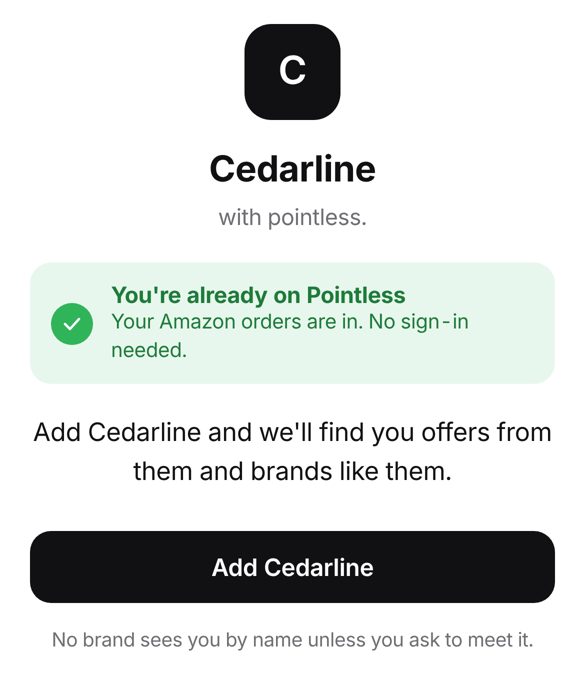
- An invite link on the phone you use for Pointless says you're already on Pointless and shows an Add button.
- One tap adds the brand. There's no Amazon sign-in and no code.
- On a new phone, Already on Pointless? Sign in brings you back to the invite with the same one-tap button.
- The brand still sees a count, never your name.
November 3, 2026
Your orders feel calmer
For shoppers
The Orders page is now a simple list with day labels, and every order shows up exactly once.
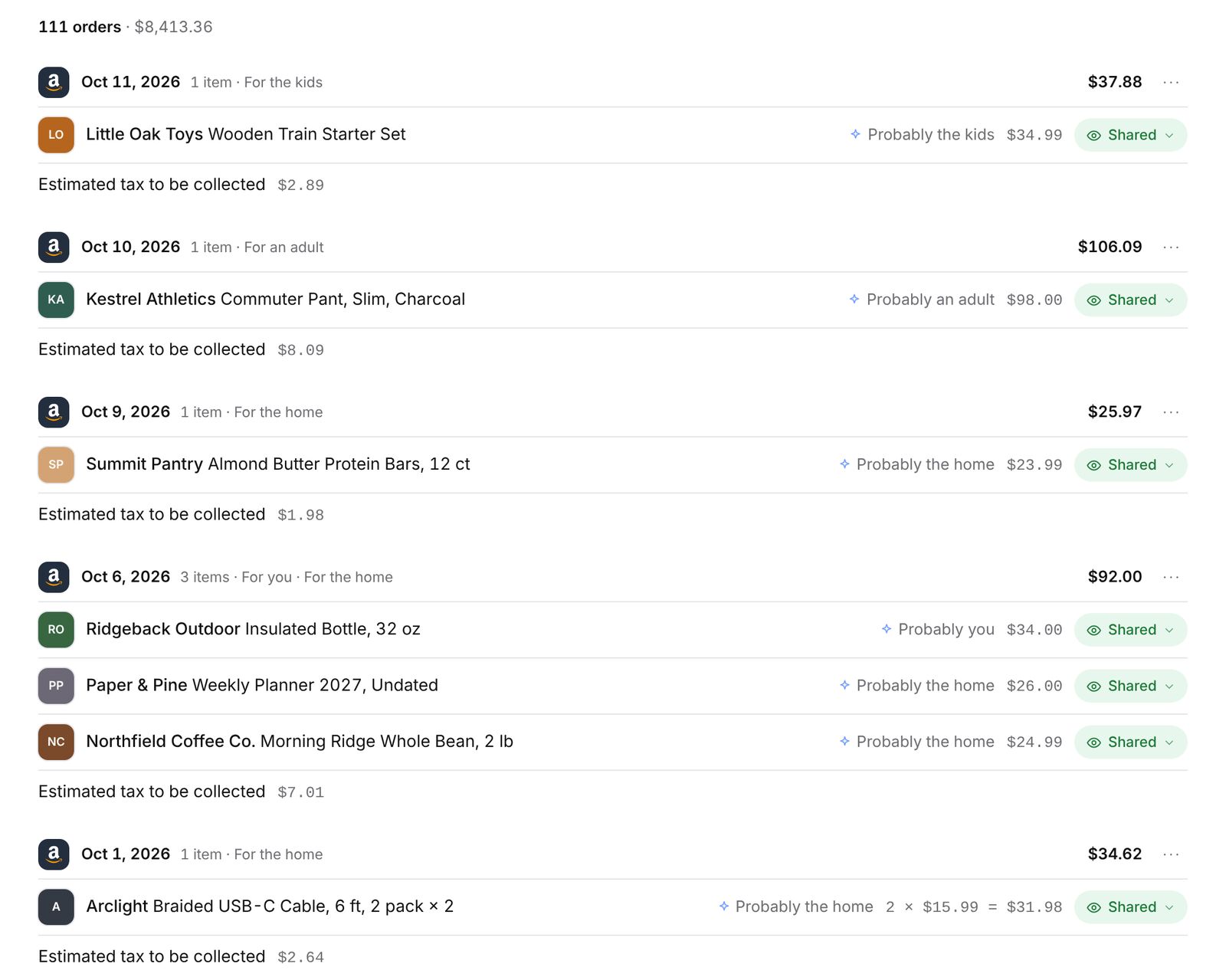
- Orders read as one calm list grouped by day, instead of a box per order.
- Each Amazon order shows once, even when two of your reads overlap.
- Pick how many rows you see on a page.
- Filter orders by the person they were for, using their name.
- Cancelled orders are gone from every list, count and total.
A new Home
For shoppers
Home now has one "Your shopping DNA" section, with "Where else do you shop?" at the bottom.
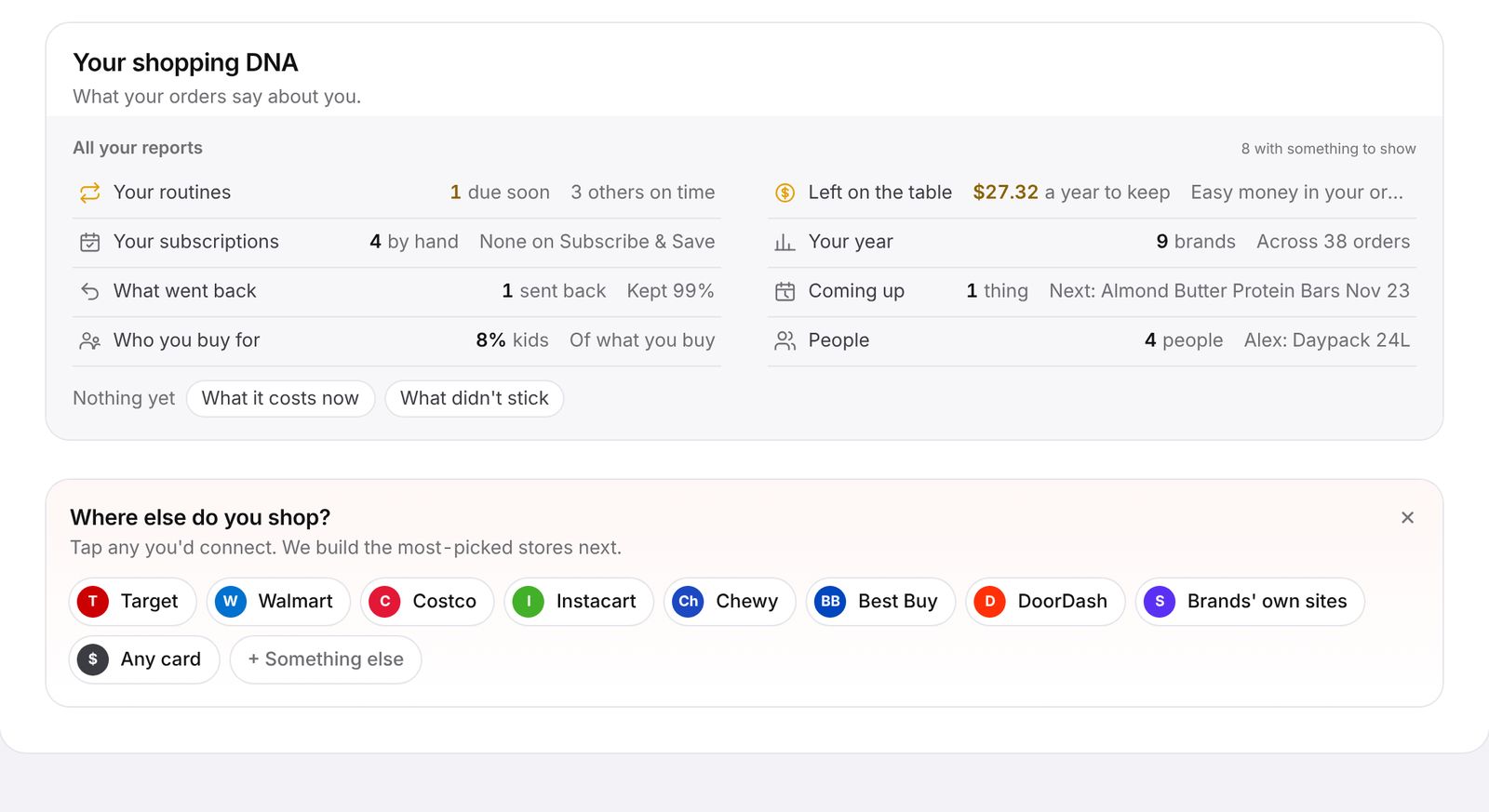
- Your findings and reports live together in "Your shopping DNA".
- "Where else do you shop?" moved to the bottom of the page.
- Tap any count to see the orders behind it, then open them on Amazon.
- The sidebar stays put on wide windows, in the app and the brand console, and the main column uses the extra room.
Subscriptions and routines you can trust
For shoppers
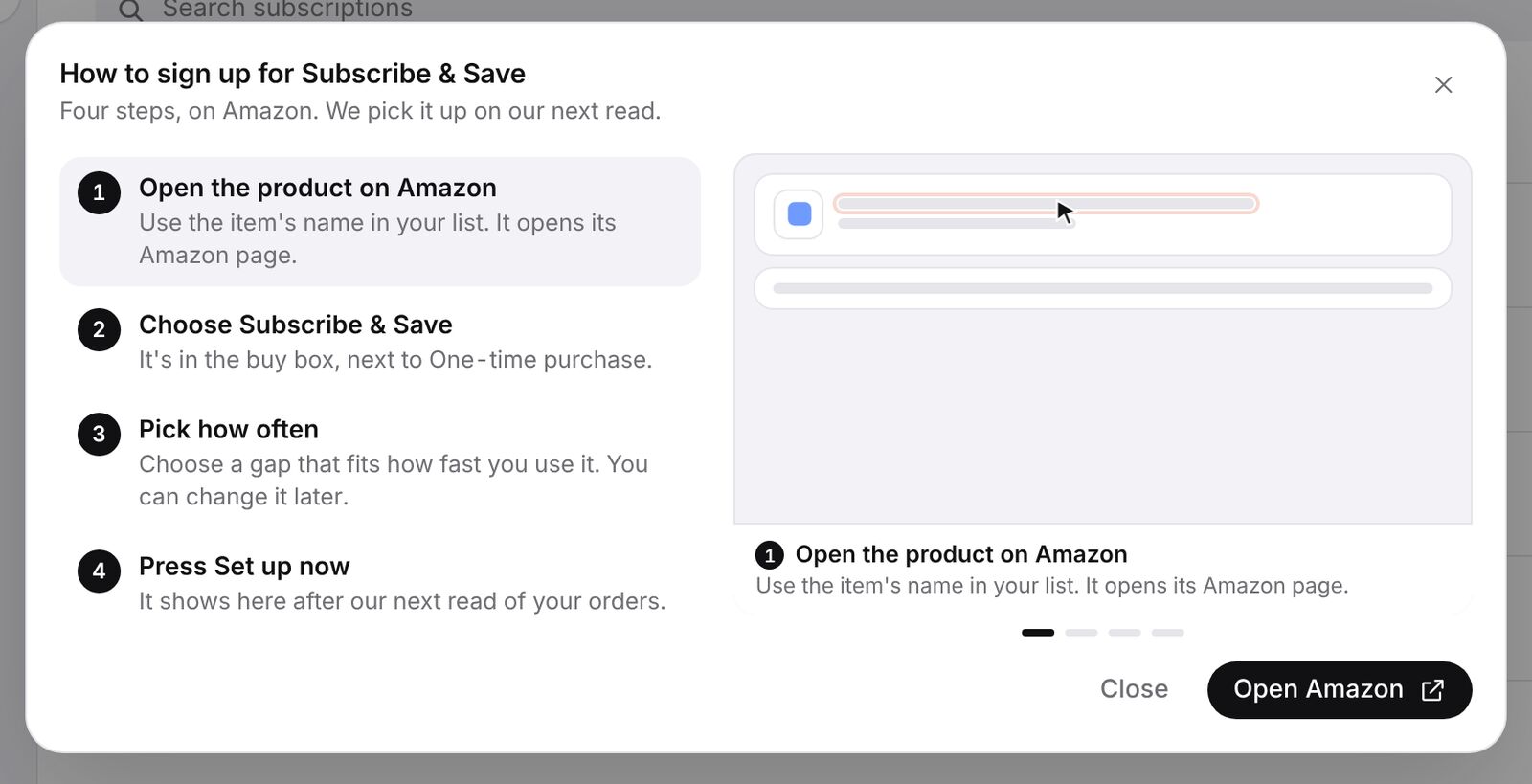
Cancelled Subscribe & Save items stop showing as due, and the Subscriptions page shows how to start one.
- Cancelled subscriptions drop off after a refresh, and no longer show on Coming up or Home.
- Subscriptions link straight to the item on Amazon.
- The Subscriptions page explains how to start a Subscribe & Save.
Fairer price comparisons
For shoppers
Your inflation no longer mixes different sizes of the same product into one price.
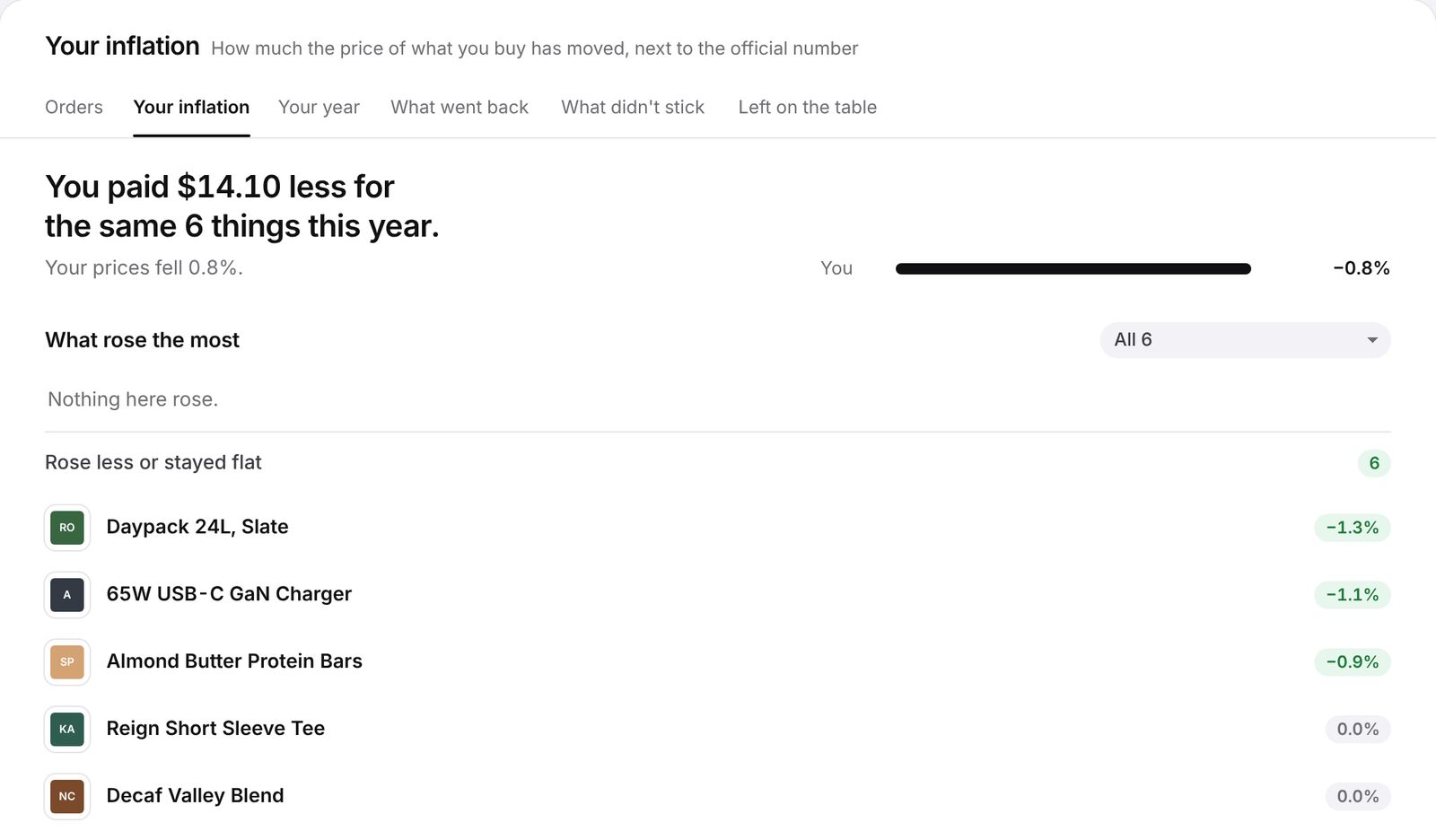
- A 90-count and a 30-count are never compared as one price.
- A single buy far off a product's usual price is treated as a different size and left out.
- Brand story shows how much you spent with each brand, and you can sort it.
AI assistants start where you are
For shoppers
When you connect an assistant like Muse, it opens with your month and a few good next questions.
- Assistants open with your month card and a short list of next questions.
- In the first week of a month, the card shows last month instead of "$0 so far".
- Setting up Muse reads as a plain message, not code.
Brand console and demo
For brands
Every page of the demo brand console now has sample data to explore, and a few rough edges are smoothed out.
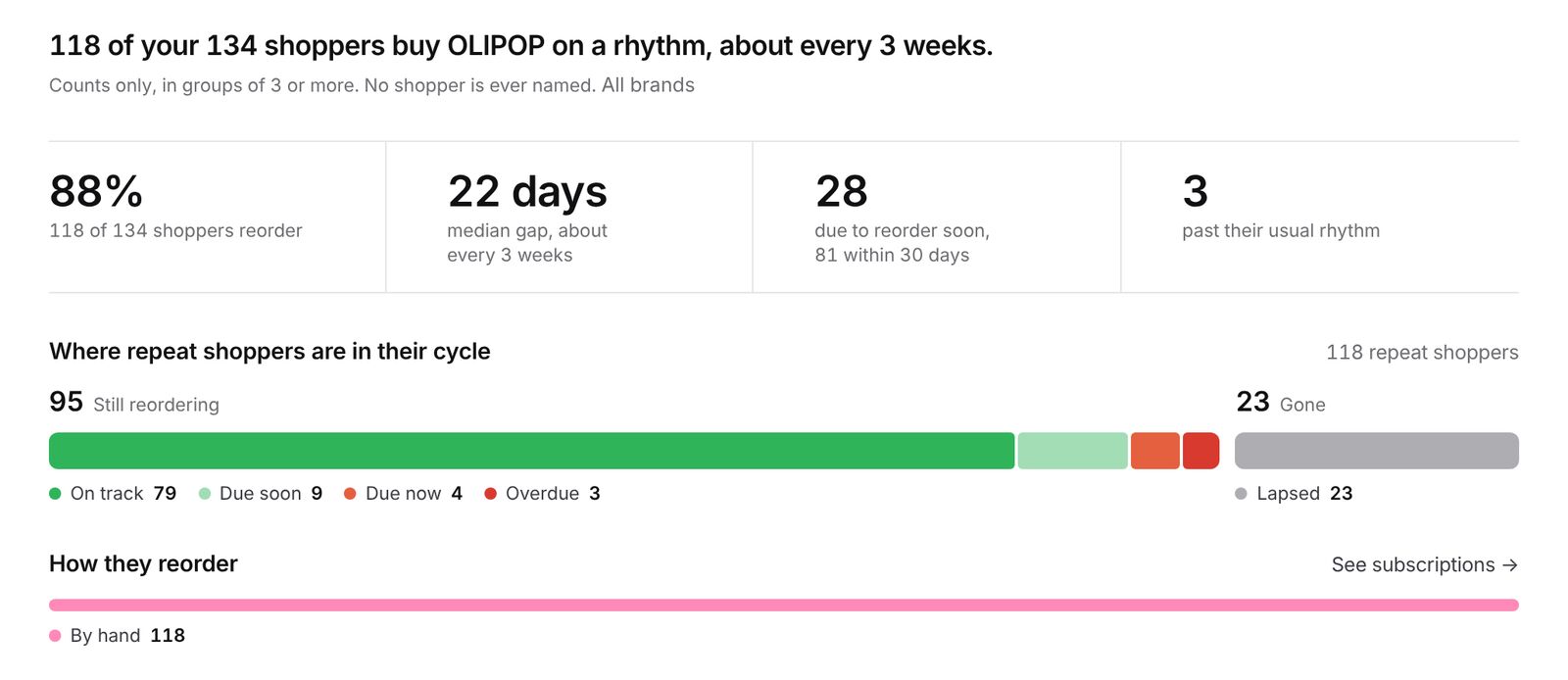
- Every brand console page on the demo shows sample data.
- Price watch no longer shows odd amounts like "by $-9.10".
- The "By what they buy" switch on Personas works again.
- Lookalikes opens with one sentence and the tiles, not a paragraph.
- Repeat shows brands that don't have a rhythm yet as a grid of logos.
- The live shopper feed sits under the month card.
- Demo products have real product photos.
- Anyone visiting the demo can leave feedback with Option+F.
- The brand sign-up page is tidier, with labels above each field.
Amazon only, for now
For shoppers
Pointless reads your Amazon orders. Bank linking is off, so no page or report uses bank data.
- New shoppers get a one-tap "How did you hear about Pointless?" while their orders load.
- Dark buttons stay readable when you hover over them.
November 2, 2026
Smoother Amazon reads
For shoppers
Reading your Amazon orders is faster and steadier, and it keeps what it has already found.
- A read can't freeze any more, and it keeps the orders it already found.
- Amazon's "Continue" step can be tapped right from the connect page.
- Order prices and shipping lines read correctly on Amazon's newer order page.
- Refresh fills in only the order details that were missing.
- The Privacy tab has clearer sections and lets you choose how brands can contact you.
- You can unhide gifts you hid.
- New demo brands open in about a second, and long waits say why.